First run in the dashboard
The first time you open Trail, the dashboard walks you through setup: sign in, add your website, install the script, then check that the first visit arrives. It takes a few minutes, and you can stop at any step and pick up later.
Sign in
Open your Trail server's address, for example http://localhost:8080 or https://trail.example.com, and enter the dashboard password.
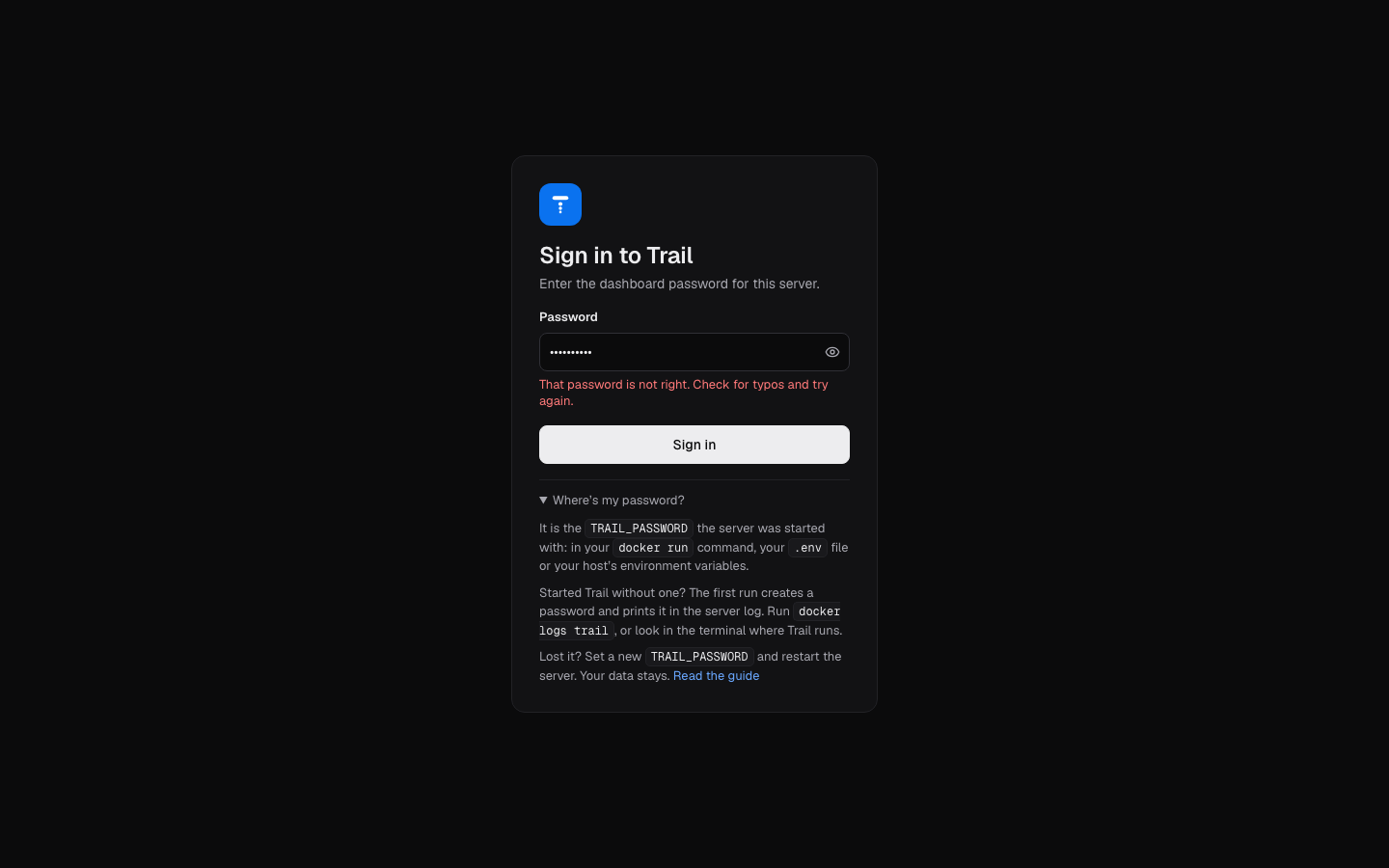
- The eye button shows the password, so you can check it for typos.
- A wrong password says so. If the dashboard can't reach the server, it says that instead, so you know to check that Trail is running.
- You stay signed in for 30 days on that browser.
Where is my password?
It is the TRAIL_PASSWORD value the server was started with. Look in:
- your
docker runcommand ordocker-compose.yml, - your
.envfile or systemd unit, - your host's environment variables (Fly.io secrets, Railway variables and so on).
If you started Trail without TRAIL_PASSWORD, the first run creates a password and prints it in the server log. Run docker logs trail, or look in the terminal where Trail runs.
Lost it? Set a new TRAIL_PASSWORD and restart the server. Your data stays, and everyone signed in is signed out.
1. Add your website
If the server has no sites yet, you land here right after signing in.
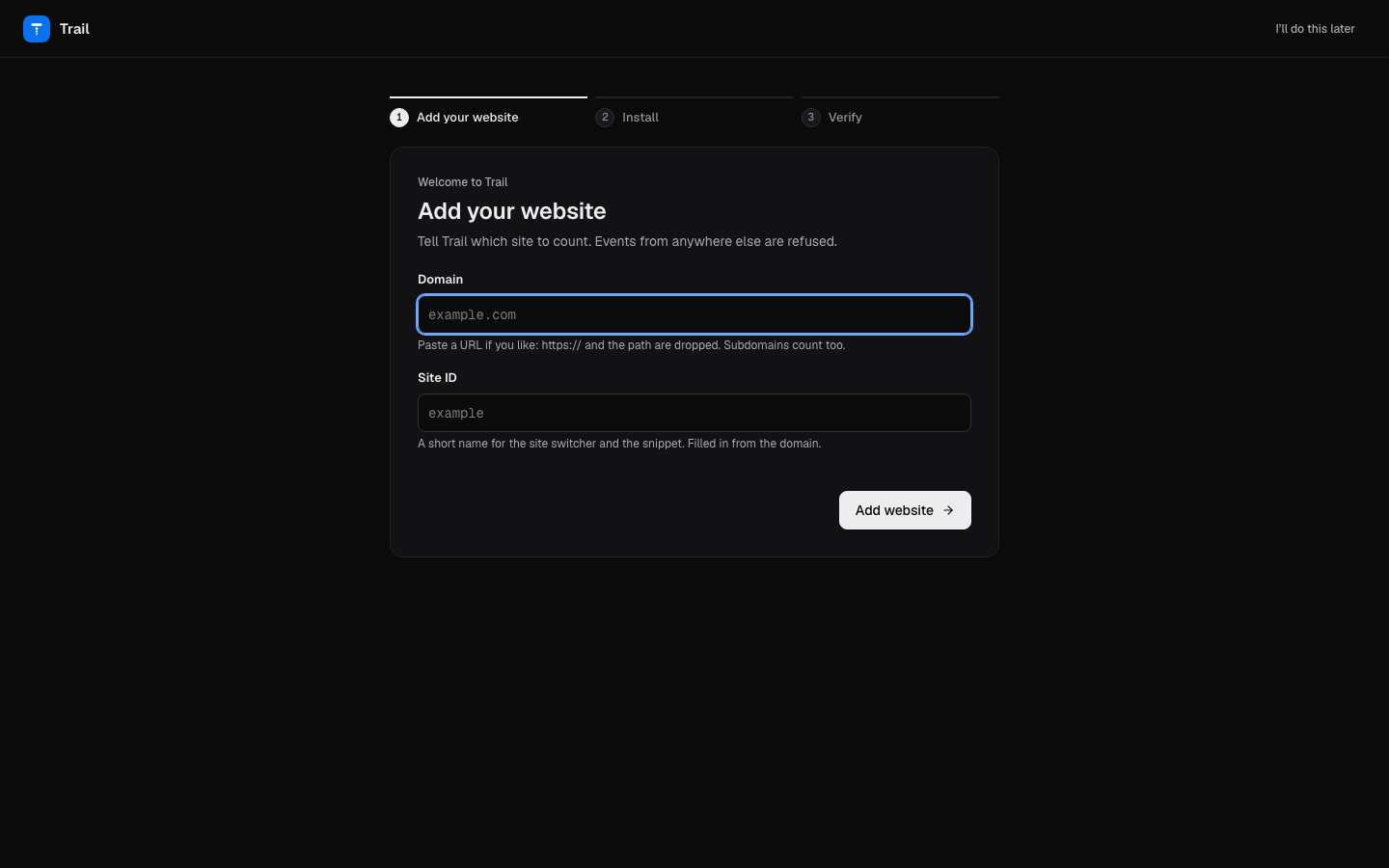
- Domain: type
example.comor paste a full URL.https://, the port and the path are removed for you, sohttps://www.example.com/pricingis saved aswww.example.com. Subdomains always count, so*.example.comis saved asexample.com. - Site ID: filled in from the domain (
www.example.combecomesexample). It goes in the snippet asdata-site. Use lowercase letters, digits and dashes.
Events from any other domain are refused. To accept more hosts later, add them as allowed origins.
2. Install the script
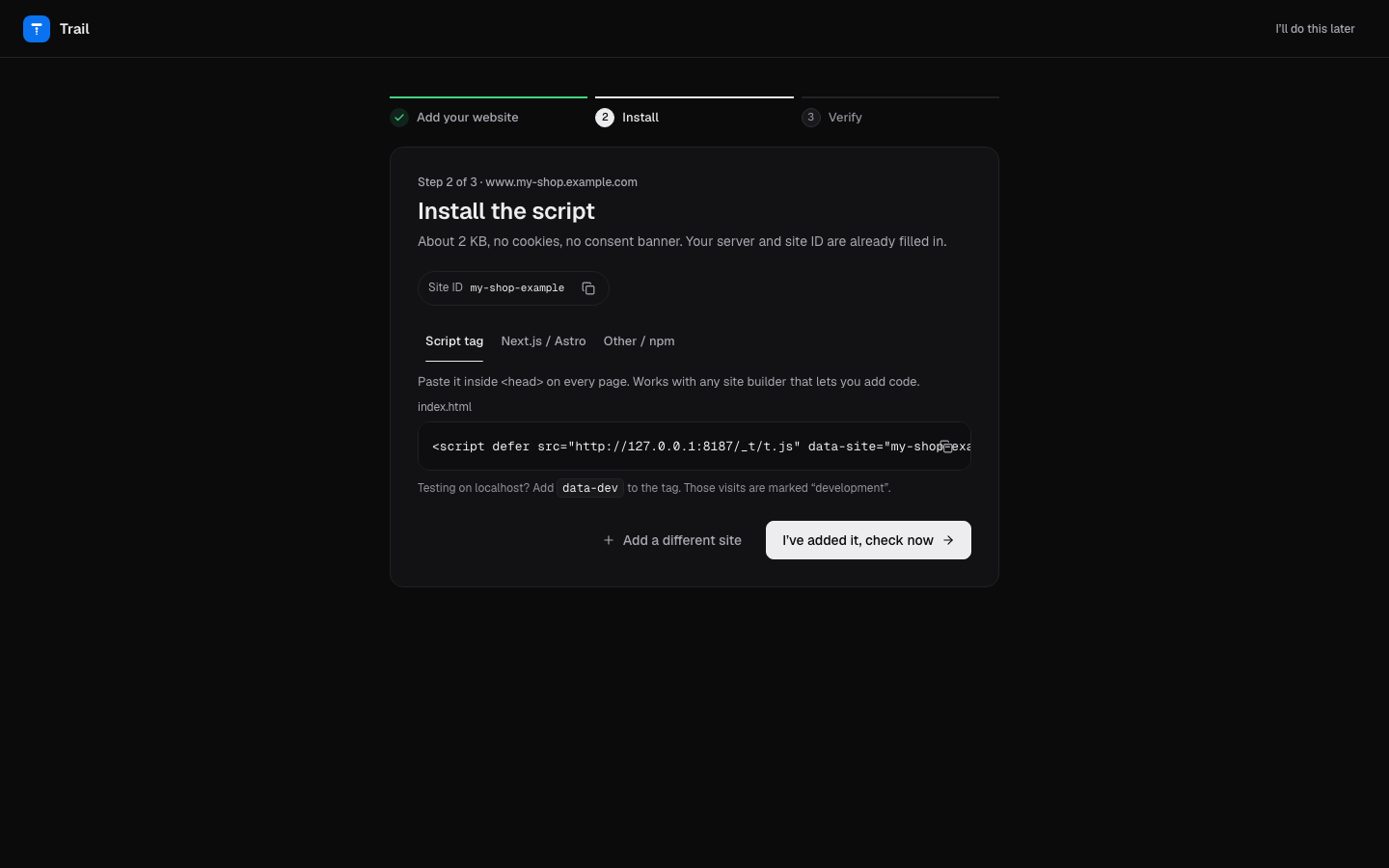
Pick how your site is built. Your server address and site ID are already in the code, and each block has a copy button.
- Script tag: paste one line inside
<head>on every page. Works with any site builder that lets you add code. - Next.js / Astro: click Create token and fill it in. You get one
npx trail-analytics initcommand with a crawl token in it. Run it in your project folder: it adds the script to your root layout and also counts AI crawlers. See AI crawlers. - Other / npm:
npm i trail-analytics, then callinject()once when your app starts. React, Vue, SvelteKit, WordPress and Hugo snippets are in Settings → Install.
Testing on localhost? Add data-dev to the tag. Those visits are tagged development, so pick All environments in the header to see them in charts.
3. Check that it works
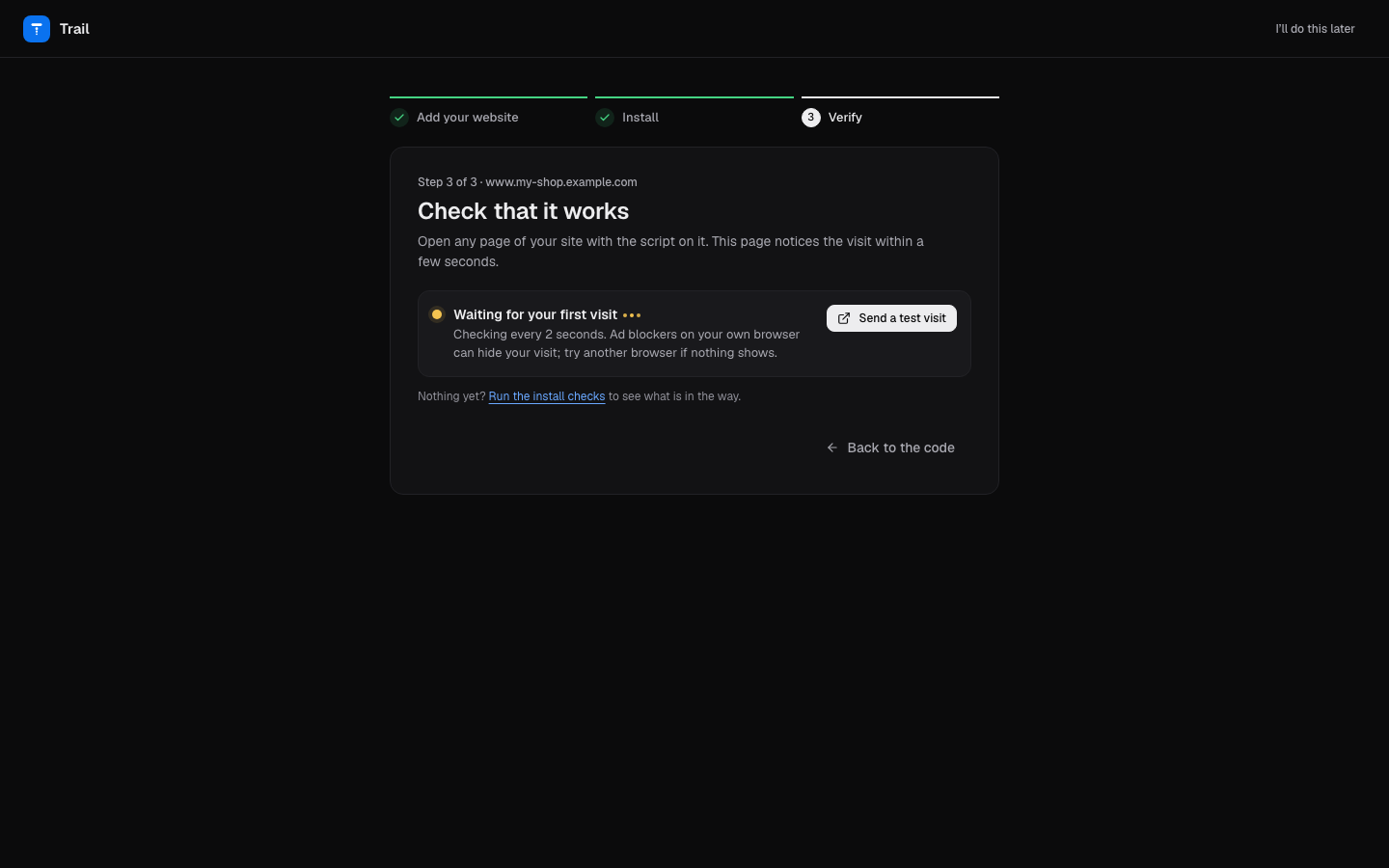
Open any page of your site. The dashboard checks every 2 seconds and moves on by itself as soon as the first event arrives.
- Send a test visit opens your site in a new tab.
- If nothing arrives after 30 seconds, the install checks open: six checks run from your server against your live site, each with a reason code and the fix.
- An ad blocker in your own browser can hide your visit. Try another browser before you change anything.
Done
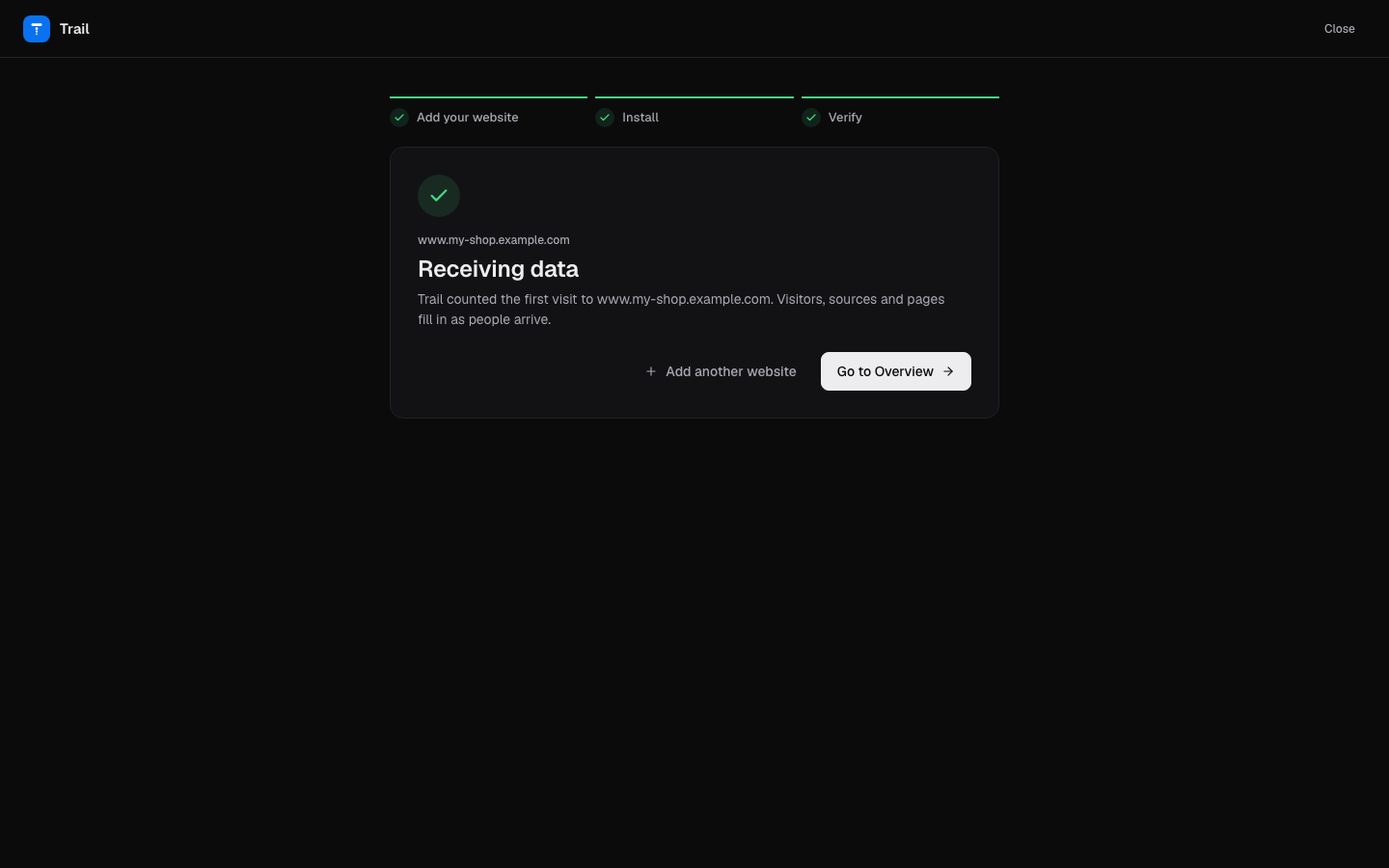
Go to Overview opens the dashboard for your site. Visitors, sources and pages fill in as people arrive. See Overview.
Skip and come back later
Click I'll do this later at the top right on any step. The dashboard remembers that choice for the site in this browser and shows its empty Overview instead.
Each step has its own address, like /welcome/install?site=example, so a reload or a bookmark resumes where you left off.
The walkthrough comes back by itself for a site that has never received an event, unless you skipped it. That includes sites you set up with TRAIL_SITES: they start at step 2.
Add more websites
Open the site switcher at the top of the sidebar and choose Add a website. You get the same three steps. Cancel takes you back to the site you were on.
The public demo never shows this walkthrough.